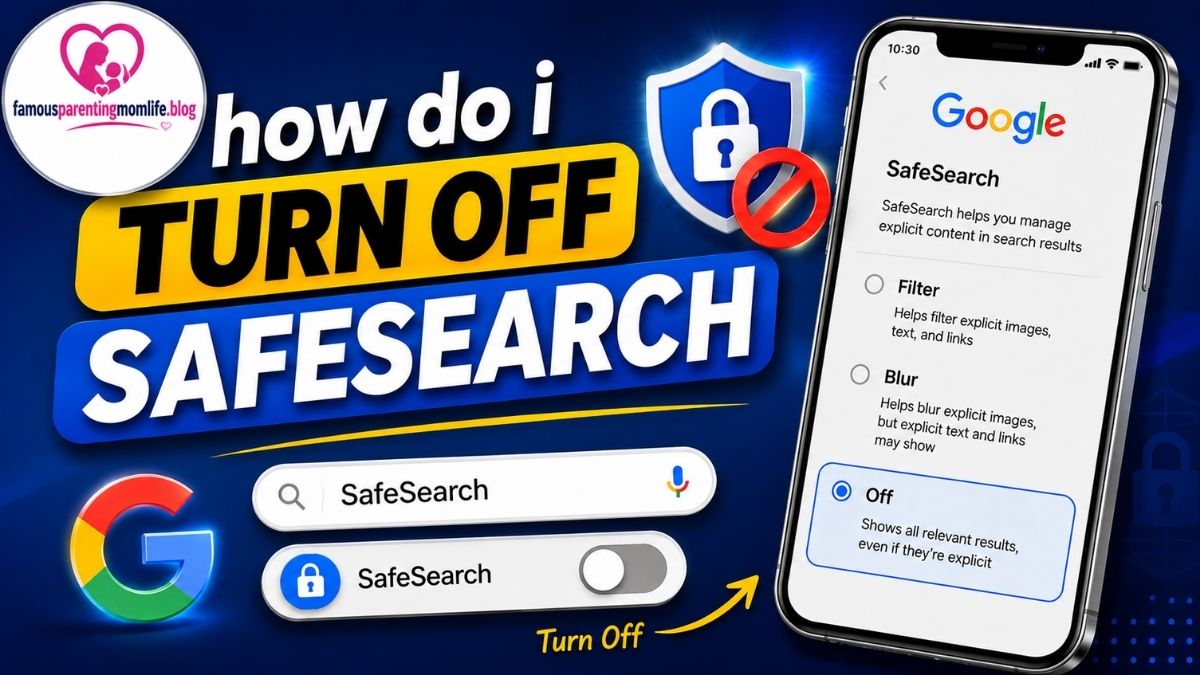
If you have ever searched for something on Google and noticed that certain results are missing or filtered, you may have wondered, how do I turn off SafeSearch? SafeSearch is designed to reduce the appearance of explicit or inappropriate content in search results. While this feature can be useful for families, schools, and shared devices, adults using a personal account may sometimes want to change the setting.
The good news is that turning off SafeSearch is usually straightforward. However, the exact steps depend on whether you are using Google Search, Bing, an Android phone, an iPhone, or a managed network.In this guide, you will learn how to turn off SafeSearch, what to do when the setting is locked, why SafeSearch may turn back on, and how to check whether the change has actually been saved.
What Is SafeSearch?
SafeSearch is a search filtering feature that helps limit explicit material from appearing in search results. On Google, it can help filter content involving explicit sexual material and graphic violence. Google currently provides three main settings: Filter, Blur, and Off.
The three options work differently:
| SafeSearch Setting | What It Does |
| Filter | Blocks detected explicit results |
| Blur | Blurs explicit images while some text and links may still appear |
| Off | Shows relevant results even when they may contain explicit content |
SafeSearch is not the same as a complete internet filter. Google specifically states that SafeSearch applies to Google Search and does not control content on other websites or search engines.
Steps to Disable SafeSearch in Google Search How to Turn Off SafeSearch on Android
If you use Google Search on a personal computer and control your own Google Account, changing SafeSearch is normally quick.
Step 1: Open Google Search
Open your preferred web browser and visit Google Search. Make sure you are using the Google account or browser profile where you want the setting changed.
Step 2: Open SafeSearch Settings
Go to Google’s SafeSearch settings. You can also access SafeSearch from Google Search settings.
Step 3: Select “Off”
Look for the SafeSearch options. Select Off if you want Google to stop filtering detected explicit results.
Google’s current settings include Filter, Blur, and Off. When Off is selected, relevant search results can appear even if they contain explicit material.
Step 4: Check the Setting
Return to Google Search and perform a normal search. You can also revisit the SafeSearch settings page to confirm that Off is still selected.
If a lock icon appears next to the setting, you may not have permission to change it. That usually means another account, device, or network administrator is controlling SafeSearch.
Disabling SafeSearch on an Android Phone
Android users can change SafeSearch through the Google app or a mobile browser.
Using the Google App
- Open the Google app on your Android phone or tablet.
- Tap your profile picture or initial.
- Open Settings.
- Select SafeSearch.
- Choose Off.
Google’s Android instructions currently list Filter, Blur, and Off as the available choices. If you see a lock icon, the setting is being controlled elsewhere.
Using a Mobile Browser
You can also open Google Search in your mobile browser and access SafeSearch settings. Select Off, then return to your search results.
If the option is unavailable or appears locked, changing browser settings alone will not necessarily solve the problem. The restriction may come from a managed Google Account, parental controls, the device, or the network.
How to Disable SafeSearch on Your iPhone
On an iPhone or iPad, you can manage Google SafeSearch through Google Search in a browser or through Google’s services.Open Google Search and access your SafeSearch settings. If you have control over the account and device, select Off.
If you are using a managed account, however, the option may be unavailable. In that situation, the restriction is not simply a browser setting.It is also important to remember that SafeSearch is a Google Search feature. Turning it off does not disable other content restrictions that may be active in iOS, a browser, a family-safety service, or a network.
How Do I Turn Off SafeSearch on Bing?
Bing has its own SafeSearch system, so changing Google SafeSearch does not automatically change Bing’s settings.
To turn off SafeSearch on Bing:
- Open Bing.com.
- Open the settings menu.
- Select More.
- Find the SafeSearch section.
- Choose Off.
- Select Save.
Microsoft currently provides three SafeSearch choices on Bing: Strict, Moderate, and Off. Strict filters explicit text, images, and videos; Moderate filters explicit images and videos; and Off does not filter explicit content from search results.
Bing may also require age verification before allowing SafeSearch to be turned off because the change can expose mature or sexually explicit results.
Why Can’t I Turn Off SafeSearch?
One of the most common problems is that SafeSearch appears to be permanently enabled. If you select Off but cannot save the change, or if the option is unavailable, there may be a restriction outside your normal search settings.
Here are the most common reasons.
Your Google Account Is Managed
If your account is managed through parental controls, an organization, or another administrator, you may not have permission to change SafeSearch.
For example, Google explains that parents using Family Link can control SafeSearch for supervised accounts. Schools can also enforce SafeSearch for certain student accounts.
Your School or Workplace Controls It
School and workplace networks may apply search restrictions at the network level. In that case, changing your personal Google settings may not override the organization’s policies.
If the network administrator has intentionally enabled SafeSearch, the appropriate solution is to contact the administrator rather than attempting to bypass the restriction.
Your Wi-Fi Network Enforces SafeSearch
Some public or managed Wi-Fi networks can enforce SafeSearch. Google specifically notes that public Wi-Fi can be one reason the setting becomes locked.
This can happen on networks in places such as schools, libraries, workplaces, airports, or other managed environments.
Parental Controls Are Active
Parental-control software can affect search settings. If the device belongs to a family member or is managed by a parent or guardian, SafeSearch may be intentionally locked.
Google also notes that parental controls and Family Link can prevent users from changing the setting themselves.
Antivirus or Security Software Is Controlling Search
Some security programs can modify search-related settings. Google lists antivirus software among the possible reasons SafeSearch may be affected or enforced.
If SafeSearch repeatedly returns to a filtered setting, check whether security or family-safety software is managing browser or search settings.
What Does the SafeSearch Lock Icon Mean?
A lock icon is an important clue.
If you see a lock beside SafeSearch, it generally means the setting is controlled by someone or something other than your normal Google Search preferences.
Possible sources include:
| Possible Source | Why SafeSearch May Be Locked |
| Family Link | A parent or guardian manages the account |
| School | The institution controls search settings |
| Workplace | An administrator applies company policies |
| Public Wi-Fi | The network enforces filtering |
| Device controls | Parental or safety settings restrict changes |
| Security software | A security application may influence filtering |
When SafeSearch is locked, Google provides information on the settings page about who or what manages the setting.
Why Does SafeSearch Keep Turning Back On?
Sometimes SafeSearch can appear to turn off successfully but later return to Filter or another restricted setting.
This can happen when the setting is being enforced by an account, device, browser, or network. Clearing browser data or switching devices can also affect saved search preferences.
First, check whether you are signed into the correct Google Account. Then look for a lock icon in SafeSearch settings. If the setting is locked, repeatedly changing it from the search page probably will not solve the underlying issue.
If you are using a school, work, or public network, its administrator may be enforcing the restriction.
Does Turning Off SafeSearch Remove All Internet Restrictions?
No. This is an important distinction.
Turning off Google SafeSearch only changes how Google Search handles detected explicit results. It does not disable every parental-control system, browser restriction, website block, operating-system safety feature, or network policy.
Google explicitly states that SafeSearch only works on Google Search and does not control content on other search engines or websites.
Therefore, if another restriction blocks a website, changing SafeSearch will not necessarily give you access to it.
SafeSearch vs. Browser Restrictions
It is easy to confuse SafeSearch with browser-level content controls, but they are different.
SafeSearch is primarily a search-result filtering system. Browser restrictions can control which websites you can visit, while network restrictions can control traffic before it reaches your device.
For that reason, changing SafeSearch is not always the answer when a website does not open.
If your goal is simply to find more complete Google Search results, changing SafeSearch may be enough. If the problem involves a blocked website or managed device, you need to identify the actual source of the restriction.
How to Check Whether SafeSearch Is Really Off
After changing the setting, use these steps to verify it:
- Reopen the SafeSearch settings page.
- Confirm that Off is selected.
- Check whether a lock icon is visible.
- Make sure you are signed into the intended Google Account.
- If the setting changes back, check whether the device or network is managed.
This simple check can help you determine whether the problem is a saved preference or an administrator-enforced restriction.
Frequently Asked Questions
Can I turn off SafeSearch on Google?
Yes, you can change the setting if you manage your Google Account and no one has locked SafeSearch. Open SafeSearch settings and choose Off.
Why is SafeSearch locked?
A parent, school, workplace, device administrator, public Wi-Fi network, or other safety system may lock SafeSearch.
Does SafeSearch work on every website?
No. Google says SafeSearch only applies to Google Search results. It does not control content on other search engines or websites.
Can I turn off SafeSearch on Android?
Yes. Open the Google app, tap your profile picture, go to Settings, select SafeSearch, and choose Off if you can change the setting.
How do I turn off SafeSearch on Bing?
Open Bing settings, go to More, find SafeSearch, select Off, and save the change. Bing offers Strict, Moderate, and Off settings.
What if I cannot change SafeSearch?
Look for a lock icon and determine whether your account, device, or network controls the setting. If an administrator manages it, only that administrator may be able to change it.
Final Thoughts
Knowing how do I turn off SafeSearch can make Google or Bing search settings much easier to understand. On a personal, unmanaged account, the process is usually simple: open the appropriate SafeSearch settings, choose Off, and confirm that the change has been saved.However, a locked setting is a different situation. If Family Link, a school, workplace, public Wi-Fi network, device administrator, or security software controls SafeSearch, you may not be able to change the search preference normally. In those cases, identifying the source of the restriction is the key step.
Also remember that turning off SafeSearch does not remove every type of internet restriction. It mainly controls how search engines display explicit content in their results. Understanding that difference can save you time and help you troubleshoot the issue correctly.For the most reliable results, always check the current settings on the search engine you actually use. Google and Bing can have different controls, so changing one does not automatically change the other.
Visit Famousparentingmomlife for more details.